Take back control of your days.

An anti-snooze alarm that locks your apps the moment you turn it off: no scrolling in bed, your day starts before your feed does. Then guardrails until bedtime.

iPhone · iOS 26+

The Alarm screen in Up: 7:15 alarm, anti-snooze mission, wake-up check

Four guardrails. One app.

Each one targets a specific moment when willpower gives out: waking up, the first minutes in bed, the reflexes of the day, and the evening you’d rather switch it all off.

01 · Wake-up app block

Your apps lock the moment you turn off your alarm

This is what Up is built around. The worst time to open Instagram is in bed, half asleep. As soon as you turn off your Up alarm, the apps you picked close on their own for as long as you set: 30 minutes by default, an hour if you like. Your day starts before your feed does.

  • Set up in 3 minutes when you install: pick the apps and the duration.
  • Nothing to start in the morning: your alarm triggers the block.
  • On a blocked app there’s one button: “Close”. Strict mode locks it in.
Morning doomscrolling: what it does to your head
Up’s block screen: “Stay focused” “On waking” triggered block in the Blocks tab

02 · Anti-snooze

An alarm that won’t let you fall back asleep

Snoozing isn’t a lack of willpower: at 7 a.m. your brain isn’t awake enough to decide anything. Up doesn’t ask you to decide. It keeps looping until you’re actually up.

  1. The alarm rings, even on Silent
  2. You stop it by solving a mission
  3. 5 min later, you confirm you’re still awake
  4. No confirmation within 5 min? The alarm rings again and it all starts over
Why you snooze, and how to stop
Math mission to turn off the alarm Up’s Alarm screen: alarm, anti-snooze mission, check, start over

03 · No distractions during the day

60 seconds to break the reflex

Most Instagram openings aren’t decisions: your thumb just goes there. 60-second mode puts a waiting screen in front of your reflex apps. Start the countdown, wait 60 seconds, and the app opens for 15 minutes. Often, a minute later, you don’t want it anymore.

  • A 60-second wait, then 15 free minutes.
  • Automatic blocks: past your daily limit on an app, it closes.
  • Scheduled blocks: evenings, work hours, the days you pick.
Why you open Instagram without thinking
Automatic block settings: 15 min of use, 30 min blocked Paused apps on the home screen, marked with an hourglass

04 · Strict mode

One more rung so you don’t switch it all off

The evening you cave, the easiest move is to turn your blocks off. Strict mode removes that exit: while it’s on, no block can be edited, paused or deleted, and 60-second mode is locked too. Getting out takes a math mission, long enough for the urge to pass.

  • Blocks and 60-second mode locked, even outside their hours.
  • Only a math mission gets you out.
  • Built to get you through the first weeks, before the habit sticks.
How many days does it take to build a habit?
Math mission to leave strict mode Strict mode turned on in the Blocks tab

Your numbers, no lectures.

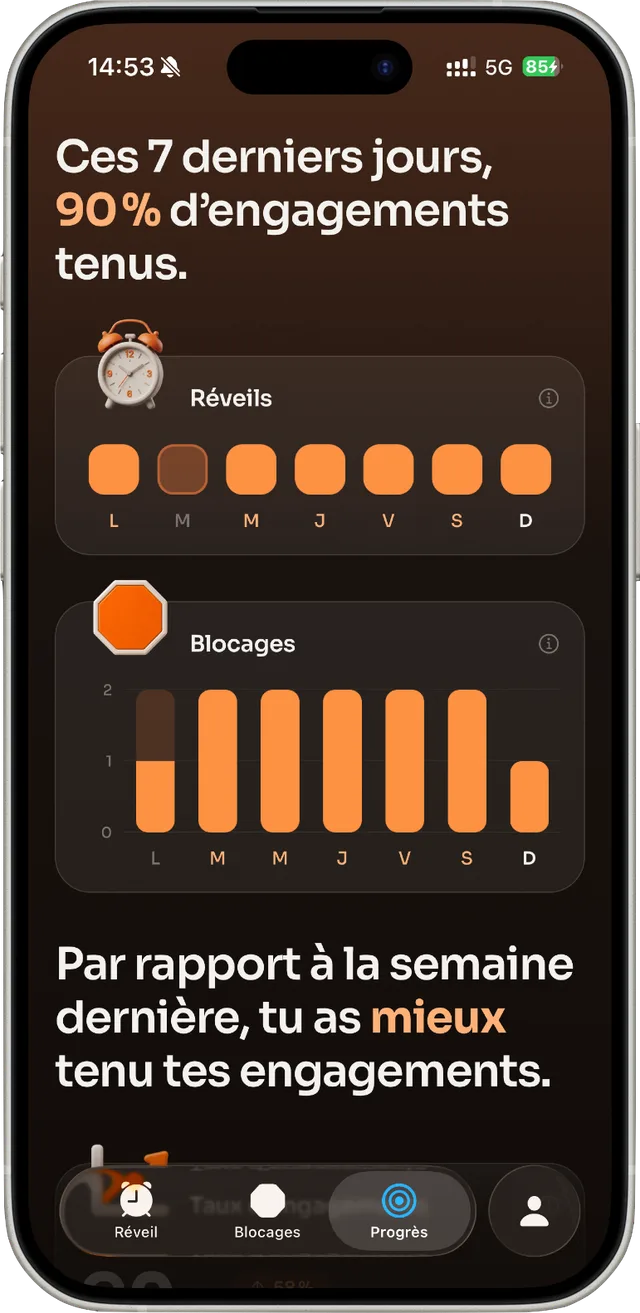
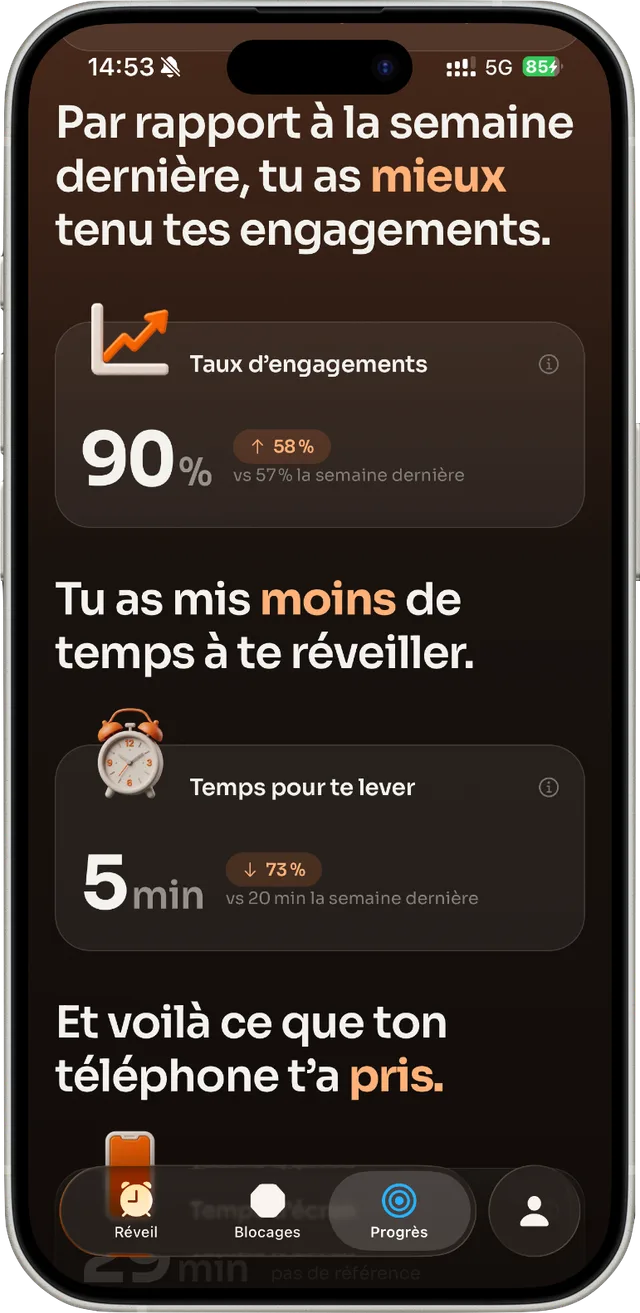
Wake-ups kept, blocks respected, time to get up: every week, Up compares it with the week before.

Progress: 90% of commitments kept over 7 days
Progress: time to get up, down this week

From the blog

Evidence-based guides on snoozing, screen time and phone habits. Every figure links to its source.

All articles →

Questions

How does Up block my apps in the morning?

You pick the apps and a duration once, during setup. Every morning, as soon as you turn off your Up alarm, those apps lock on their own for that time (30 minutes by default). There is nothing to start, and the blocked app only offers a “Close” button.

Does Up ring when my iPhone is on Silent?

Yes. Up schedules its alarm with AlarmKit (iOS 26), the same system as Apple’s Clock app, so it rings through Silent mode and Focus modes.

How do I turn off the alarm?

By completing the mission you chose: 5 mental sums, 3 color sequences, 3 spoken words, or a random pick. There is no snooze button, and if you stop halfway the alarm rings again.

Can I unblock an app when I’m tempted?

Outside strict mode, yes: you stay in charge of your blocks. In strict mode, no block can be edited, paused or deleted, and leaving strict mode requires solving a math mission.

Can Up see which apps I use?

No. Apple’s Screen Time API keeps your usage and your list of blocked apps on the iPhone; Up never receives them. Up works without an account.

Is Up free?

Up is free to download and works with a monthly or yearly subscription, with a free trial. Nothing is charged before the trial ends, and you can cancel anytime from your Apple account.

Is Up available on Android?

Not yet. Up is iPhone-only and requires iOS 26 or later, because its alarm relies on AlarmKit.

Tomorrow morning, you get up.

iPhone · iOS 26+